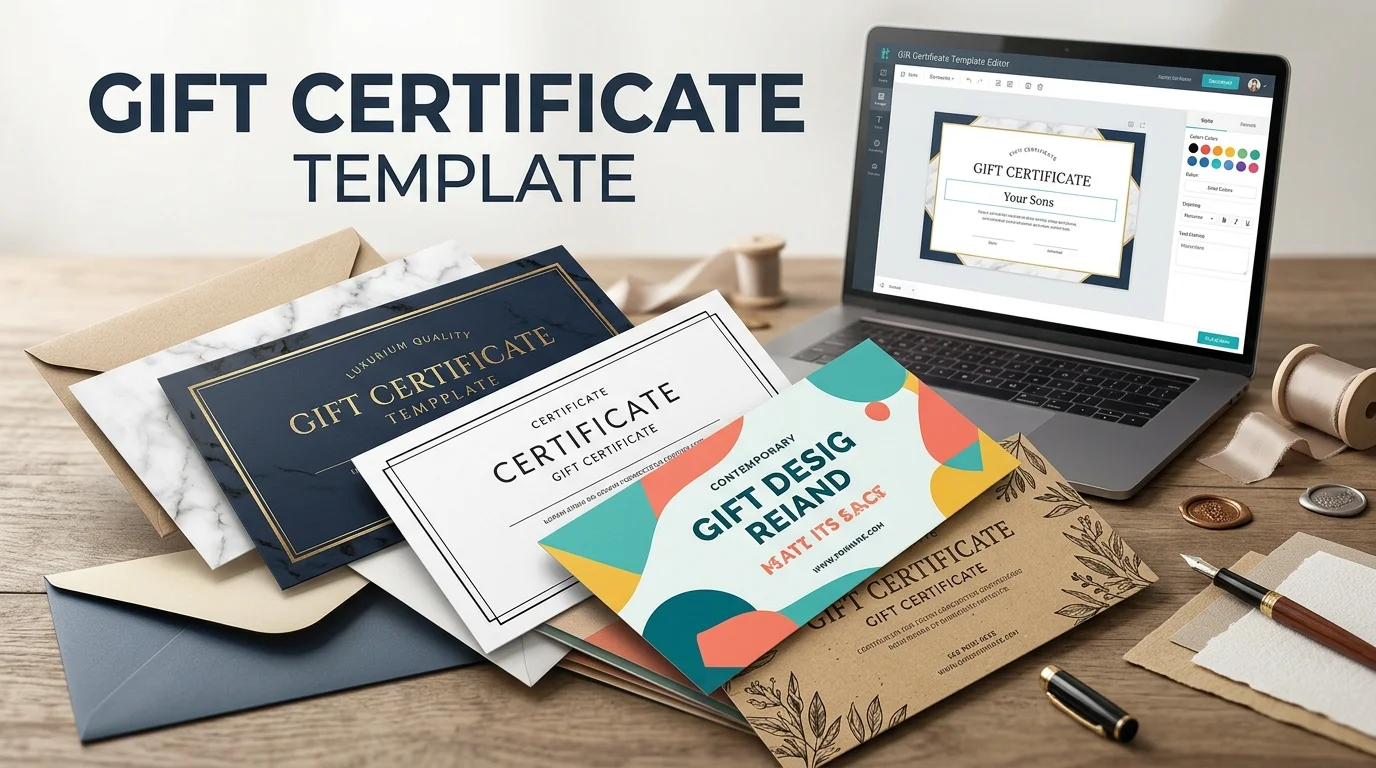
A gift certificate template gives you a ready-made structure for creating a branded voucher without designing every field from scratch. The copy-ready version below costs $0 and serves as a starting point for Word, Google Docs, Canva, or other layout apps. Add the value, recipient, unique number, redemption terms, and business details, then export it for print or email.
Short answer: Start with a simple voucher that shows the recipient, value or service, issuer, unique certificate number, issue date, redemption instructions, and clear terms. Add your brand name and contact details, then save a print-ready PDF or digital copy. For small businesses, a numbered record also helps track redemptions.
| Template detail | What to know |
|---|---|
| Cost | $0 for the copy-ready format below |
| Best for | Small businesses, salons, restaurants, services, events, and personal gifts |
| Editable in | Word, Google Docs, Canva, or most design tools |
| Essential fields | Recipient, value, certificate number, issue date, redemption details, terms |
| Delivery | Print, PDF, or digital attachment |
| Useful extra | Unique number, barcode, or QR code for tracking |
| Legal check | Review applicable expiration and fee rules before publishing terms |
Free Gift Certificate Template You Can Copy and Customize

You don’t need complicated software to create a usable voucher. Copy the structure below into your preferred editor, then replace each bracketed field.
[YOUR BUSINESS NAME OR LOGO]
GIFT CERTIFICATE
| Presented to | [Recipient name] |
| Gift value or service | [$100 / One 60-minute massage / Dinner for two / Custom service] |
| Certificate number | [GC-2026-001] |
| Issued on | [Month Day, Year] |
| Issued by | [Business or giver name] |
| How to redeem | [Call, book online, visit the store, or provide the certificate number at checkout] |
| Contact | [Phone / Email / Website] |
| Terms | [Where it can be used, restrictions, remaining-balance policy, transfer rules, and legally compliant expiration information, if applicable] |
| Authorized by | [Name or signature] |
For a personal gift, you can remove the business fields and add a short message. A business version should keep enough information to verify the voucher when someone redeems it.
What Information Should the Certificate Include?
Keep the front easy to scan. The recipient should understand what they received and how to use it without having to search for missing details.
Adobe recommends including items such as the amount, business contact information, compliance validity information, a unique number or code, and terms or restrictions.
For most small businesses, that means including:
- Your business identity. Add your name, logo, and brand colors.
- The value or offer. State a dollar amount or describe the service clearly.
- Recipient information. A name is useful when the voucher is personalized.
- A unique certificate number. Use a different code for each issued voucher.
- Issue information. Record when it was created or purchased.
- Redemption instructions. Tell the holder where and how to use it.
- Contact details. Include a website, phone number, or email address.
- Clear terms. Explain any restrictions before the voucher is purchased or used.
A unique number also gives you a simple recordkeeping system. Adobe lists unique numbers, barcodes, and QR codes as options for tracking value or balances. Certifier likewise uses unique IDs and QR codes as verification tools on its digital certificates.
Which File Format Should You Use?
The right format depends on whether you care most about quick editing, visual design, or final delivery.
| Format | Best for | Main advantage | Watch for |
|---|---|---|---|
| Word | Fast business use | Easy text editing | Layout may shift between devices |
| Google Docs | Shared editing | Simple collaboration | Fewer advanced design controls |
| Canva | Branded visual designs | Strong control over colors and graphics | More setup than a plain document |
| Sending and printing | Keeps the finished layout stable | Edit the source file before exporting |
For speed, Word or Google Docs is usually the easiest starting point. Choose Canva when appearance matters more, such as for salons, restaurants, holiday promotions, or premium services. Use PDF as the final delivery format rather than as your main editing file.
Canva and Adobe both currently offer editable design options for those who want greater visual control.
If you operate several locations, keep fonts, colors, offer wording, and redemption rules consistent. Biznovaa’s guide to brand consistency across locations explains why local promotions still need to fit the larger brand.
How to Customize Your Voucher in 5 Steps

1. Add Your Business Identity
Replace placeholder text with your company name and logo. Choose one or two brand colors rather than filling every section with decorative elements.
A clear layout usually looks more professional than a crowded one.
2. Define Exactly What the Recipient Receives
Choose either a monetary value or a specific service.
For example:
- $50 toward any purchase
- One haircut and styling session
- Dinner for two up to $100
- One personal training session
Avoid vague wording that could create questions at redemption.
3. Assign a Unique Number
A basic sequence works well for a small operation: GC-2026-001, GC-2026-002, GC-2026-003.
Record the number, original value, purchase date, purchaser, and redemption status in your normal business records.
This becomes more useful as sales grow. Gift offers can support customer acquisition and repeat business, topics also covered in Biznovaa’s guide to customer acquisition and retention strategies.
4. Write the Redemption Terms
Tell customers where the voucher is valid and whether appointments or advance booking is required. Explain restrictions in plain language.
Be careful with expiration clauses. In the United States, federal protections apply to many covered gift cards and certificates, while state laws can add their own requirements. The National Conference of State Legislatures’ summary of gift card statutes notes federal protections against expiration within 5 years for covered products, as well as restrictions on certain fees.
Rules can vary by certificate type and jurisdiction, so check the applicable law for your business before publishing expiration or fee terms.
5. Export and Test the Finished Version
Proofread every field, then create one test copy. Square’s current workflow for its downloadable certificates follows the same basic pattern: customize the template with business details, print it, cut it, and distribute it.
If you send certificates digitally, export a PDF and check it on both desktop and mobile devices before sending it to customers.
What Size Should You Print?
There isn’t one required size. Adobe suggests 3.5 x 2 inches for wallet-sized and 6 x 2.75 inches for check-sized, as starting points. Canva currently offers A6 certificates at about 5.5 x 4.25 inches and A5 versions at about 7.1 x 5.5 inches. Choose the size based on how the recipient will receive it.
A smaller design works well inside an envelope or at a retail counter. A larger layout gives you more space for branding, service descriptions, or an accompanying message. Leave enough margin around the edges so important text isn’t lost during trimming.
Make It Look Professional Without Overdesigning It

A business voucher should appear to be connected to the company that issued it. Use the same logo, colors, and tone that customers see on your website or storefront. Keep decorative graphics behind the important information rather than letting them compete with it.
One strong visual element is usually enough. That could be your logo, a subtle border, a product photo, or a small seasonal graphic.
For promotional campaigns, the certificate can also reinforce loyalty and brand perception. Biznovaa’s discussion of customer loyalty and brand trust provides broader context on maintaining credible customer relationships.
Before publishing, print one sample at actual size. Check that the certificate number, value, redemption details, and contact information remain easy to read.
Gift Certificate Template FAQ
Yes. You can use the copy-ready structure on this page at no charge and place it in an editor you already use. Your costs depend on any software, premium graphics, paper, or professional printing you choose.
Use either a clear monetary amount or a defined service. Avoid wording that could leave the recipient unsure about what is covered.
Don’t add an arbitrary expiration date without checking the rules that apply to your location and certificate type. U.S. federal and state consumer-protection rules can affect expiration terms.
Give every voucher a unique number and record its status. Mark the number as redeemed after use. Businesses with higher volumes can use a barcode, a QR code, a POS system, or a dedicated gift-card platform.
Choose Word for speed and straightforward text editing. Choose Canva when branding and visual presentation matter more. Export either version to PDF when the design is finished.